

Register Workload Measurements On-chain
This guide explains how to register workload measurements (RTMR / OS_IMAGE_HASH) on-chain so that KMS will authorize your workloads to receive keys.Background
When a TEE workload starts — whether a dstack CVM (GCP) or a Nitro Enclave (AWS) — it generates a hardware attestation that includes measurements (cryptographic hashes of the code and configuration). KMS checks these measurements against an on-chain allowlist before dispatching keys. If you update your application code, Docker images, or the base image version, the measurements change. You must register the new measurements before KMS will authorize the updated workload.Two Layers of On-chain Registration
The dstack ecosystem has two distinct registration flows:
This guide covers workload registration — the process of registering your application’s measurement so that KMS will dispatch keys to it. This applies to:
- GCP workloads — dstack CVMs running applications that need keys from KMS
- Nitro workloads — Enclaves that need keys from KMS (KMS itself runs on GCP only)
Prerequisites
- A deployed dstack-kms instance with on-chain governance configured
- Governance contracts (DstackKms, DstackApp) deployed
- Multisig Safe with signer access
- The new measurement value (from your build/deploy output)
Step 1: Build and Deploy Your Workload
First, build and deploy your application to get the measurements:Step 2: Extract the Measurement
GCP (TDX): The measurement is thecompose-hash value in RTMR3, displayed in the dstack-cloud status output. This value represents the hash of your docker-compose.yaml configuration.
AWS Nitro:
The measurement is the OS_IMAGE_HASH, calculated as sha256(PCR0 || PCR1 || PCR2). Run:
- PCR0 — Complete EIF content hash (enclave image)
- PCR1 — Linux kernel and boot ramdisk
- PCR2 — Application layer (Docker image filesystem)
Note: The OS_IMAGE_HASH is the value you register on-chain. Any change to the Dockerfile, application code, or configuration produces a different hash.
Alternative: Preview measurements without full build:
Important: When using--show-mrsto preview, you must use the exact sameKMS_URL,APP_ID, androot_ca.pemas the production build. Any difference will produce different PCR values.
Step 3: Prepare the Governance Transaction
You need to callDstackKms.addOsImageHash() with the new measurement value.
3.1 Draft the Transaction
Using the Safe web interface (https://app.safe.global):- Connect your signer wallet
- Go to your Safe
- Click “New Transaction” → “Contract interaction”
- Select the
DstackKmscontract - Select the
addOsImageHashfunction - Enter the measurement value (hex string)
- Review and submit
3.2 Alternative: Using CLI
Note: In production, do not use a single private key. Submit the transaction through the multisig Safe instead.
Step 4: Collect Signatures
The transaction enters the multisig queue. Other signers must approve it.- Each signer connects to the Safe web interface
- Opens the pending transaction
- Reviews the measurement value
- Confirms (signs) the transaction
Step 5: Wait for Timelock
After multisig approval, the transaction enters the Timelock queue.- Production: Wait 24-72 hours (depending on your configuration)
- Testnet: Wait 1-4 hours
Step 6: Execute
After the Timelock expires, the transaction can be executed:- Open the Safe web interface
- Find the transaction in the queue
- Click “Execute”
Step 7: Verify
Verify that the measurement is registered:true
Workflow Summary
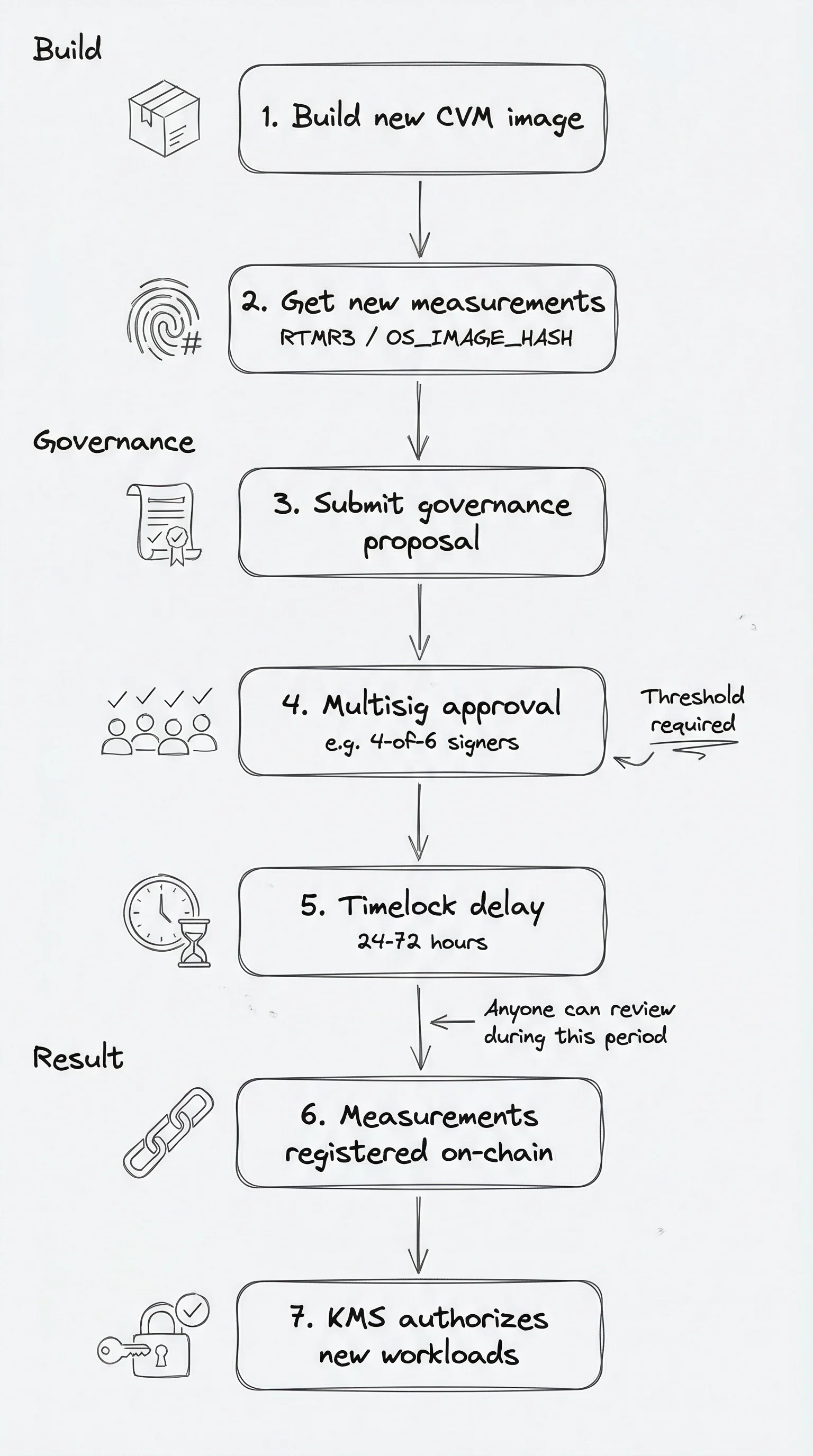
Registering Multiple Measurements
If you are deploying multiple workloads (e.g., different application versions for canary testing), you can register multiple measurements in a single governance transaction:- Call
addOsImageHashfor each measurement value - Bundle them into a batch transaction in the Safe
- Submit for approval as usual
Revoking a Measurement
If a measurement is found to be compromised or no longer needed:Common Issues
Next Steps
- Manage Governance — Other governance operations
- Concept: Attestation Integration — How measurements are generated
- Concept: KMS and Key Delivery — How KMS uses measurements