
Who can reach the guest agent
By default, only Phala Cloud can reach it. Dashboard logs and metrics keep working, because Phala Cloud is the one asking for them. Open it to everyone only when others need to verify your app remotely. For example, the Trust Center or a third-party verifier needs to read the attestation data. If nobody outside needs that, leave it restricted.Open the guest agent
- Open the dashboard, select your app, then select Domains.
- Find the Guest agent (port 8090) row and select Add.
- Read the confirmation. Anyone will be able to reach port 8090. Select Add to continue.
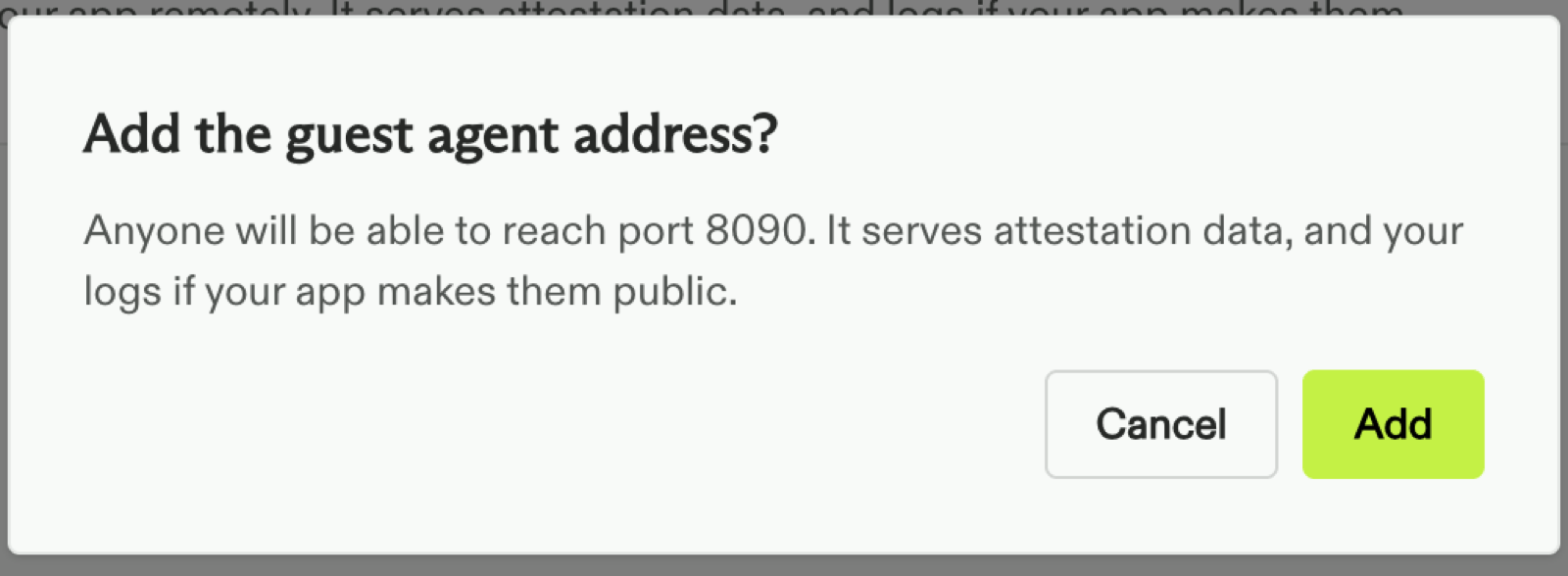
The confirmation before the guest agent address is added
<app_id>-8090.<gateway domain>. Share it with the people who need to verify your app.
Restrict it again
- On the Domains page, find the guest agent row.
- Open its ⋯ menu and select Restrict.