- Updating with Onchain KMS — roll a new compose file when you hold the DstackApp owner key.
- Multisig and Governance — the same flow when the DstackApp owner is a Safe, timelock, or DAO contract.
- Device Management — allowlist the nodes your app is allowed to run on.
Prerequisites
You need the following before starting:-
The phala CLI if you plan to deploy from the command line. Install it globally with npm, or run it on demand without installing:
After installing, authenticate with
phala login(device flow) orphala login --manual(API key). -
A wallet and its private key. The first deployment signs one transaction (
deployAndRegisterAppon KmsAuth). Subsequent compose updates sign one more (addComposeHashon your DstackApp), plus possiblyaddDeviceif the node changes. For production, you will typically transfer ownership to a Safe after the first deploy — see Multisig and Governance. - A little gas. The CLI enforces a minimum balance of 0.001 ETH by default before it will attempt to deploy. For first-time users, Base is the recommended chain because the same transactions cost a fraction of a cent. Ethereum mainnet is supported if you want maximum decentralization and are willing to pay L1 gas.
-
An RPC URL for the chain you pick (optional). The CLI and SDK use viem internally, which ships with a default public RPC endpoint for each supported chain, so you can often skip this. For production or anything that does more than a handful of calls, buy an RPC from a reliable provider (Alchemy, QuickNode, Infura, or equivalent) and pass it via
--rpc-urlor theETH_RPC_URLenvironment variable (the foundry/cast convention). The dashboard uses a bundled RPC by default and also lets you override it per deployment. -
A
docker-compose.ymlfor the workload you want to run. This gets embedded into theapp-compose.jsonmanifest described above. -
Environment variables (optional). Your workload may not need any beyond what the image already defaults to. If it does, pass them with a
.envfile (-e .env) or inline (-e KEY=VALUE). Env vars are end-to-end encrypted before they leave the CLI — the CLI fetches the CVM’s per-applicationapp_env_encrypt_pubkey(a public key derived inside the KMS), encrypts each value locally, and submits only the ciphertext to the backend. Neither Phala Cloud nor any node operator can read plaintext env vars; only the CVM can, after the KMS releases the matching private key.
You do not need to install anything dstack- or solidity-related. The CLI bundles the KmsAuth and DstackApp ABIs and handles the transaction construction for you.
Checklist
Before running the CLI or opening the dashboard, make sure you can answer yes to all of the following:- I have an API key or an active
phala loginsession for the workspace I want to deploy into. - I have a
docker-compose.ymlthat runs my workload end to end locally. - I have a wallet and I know its private key (or I have a browser wallet extension ready).
- My wallet holds at least a little native token on the chain I am targeting — 0.001 ETH on Base is plenty for the first deploy and the first few updates; on Ethereum mainnet you will want more depending on current gas.
- I know which chain I want to govern this application: Base for fast and cheap, Ethereum for maximum decentralization.
A note on private key hygiene
The CLI accepts the deploy private key via--private-key or the PRIVATE_KEY environment variable. Both leave a trail somewhere (shell history, environment export) and are fine for a dev wallet or a CI secret, but they are not a long-term production posture. After your first successful deploy, the recommended path is:
- Keep the deploy wallet as the initial DstackApp owner only long enough to verify the CVM is running.
- Transfer
ownerto a Safe or timelock that you actually use for production governance. - From that point on, updates go through Multisig and Governance, not through
--private-key.
A Concrete Example Before We Start
To make the rest of this page easier to follow, imagine you want to deploy the Phala Cloud Gin starter as a CVM on Base, with the DstackApp owned by your personal wallet for now. You will upgrade to a Safe after the first deploy is working. Yourdocker-compose.yml:
.env file is needed for this example. If you later add env vars they will be end-to-end encrypted before leaving the CLI, as described in the prerequisites.
In your shell, export the private key of the wallet you will deploy from:
ETH_RPC_URL for a first deploy — the CLI will fall back to viem’s default public RPC for Base. If you hit rate limits, set ETH_RPC_URL to a paid RPC from Alchemy, QuickNode, or any other provider.
After this page you will have:
- A DstackApp contract on Base, owned by your wallet, with the initial compose hash in its allowlist and the scheduled node’s device ID in its allowlist.
- A running CVM serving the Gin starter on port 80, whose keys the KMS released after verifying the TDX quote and reading the DstackApp.
- A clear command you can run any time you want to update the compose file.
Deploying via the Dashboard
The dashboard flow is a single wizard athttps://cloud.phala.com/<your-workspace>/deploy. It provisions the CVM first, then pops open a drawer asking your wallet to deploy the DstackApp contract, then commits the CVM to the backend.
Step 1: Start a new deployment
From your workspace home, click Deploy (or pick a template from the template gallery, which pre-fills the compose file). The wizard opens with sections for Basic Info, Resources, Environment, SSH Access, Advanced Features, and a Deployment Summary.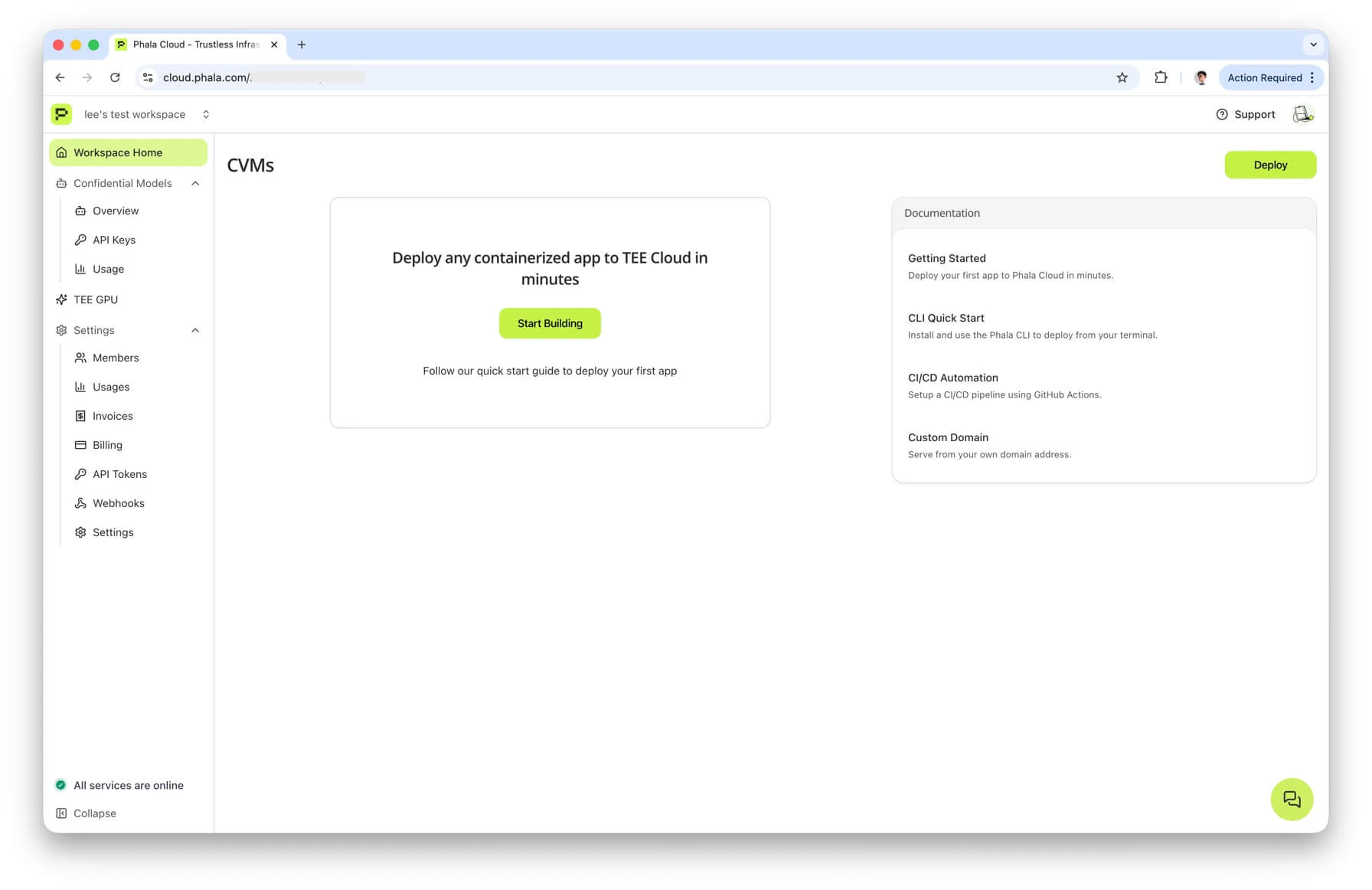
Step 2: Pick your compose file and resources
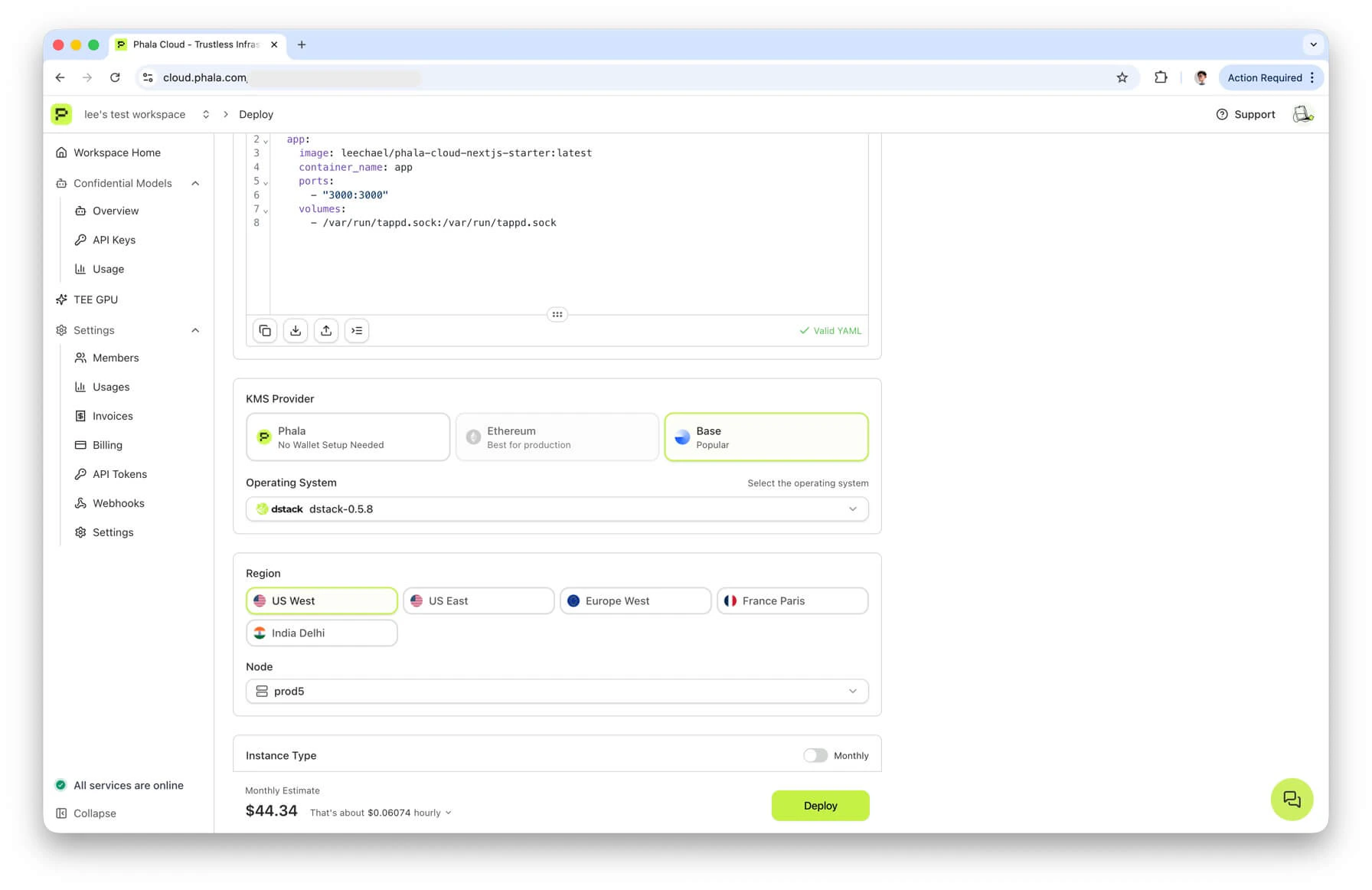
Enter a name, paste yourdocker-compose.yml (or keep the template’s default), and choose an instance type. The wizard queries the backend for available nodes and surfaces three things that matter for onchain KMS:
- Node selection. Only nodes that support onchain KMS will expose a
device_idthat the DstackApp can allowlist. The wizard filters the list for you. - KMS Provider cards. Below the resource section you will see a row of cards labeled “KMS Provider,” one per available KMS. Pick the card for Base or Ethereum depending on which chain you want to govern this application. The default, if you do not pick one, is Phala Cloud’s centralized KMS — which is the other page’s topic.
- OS Image. Only dstack OS images that the KmsAuth contract has allowlisted will show up once you select a chain-backed KMS. (This is the dstack operating system image that boots the CVM, not the Docker image your app runs as.)
Step 3: Fill in environment variables
Any required variables from a template will be flagged. The wizard will refuse to submit until they are filled. These values never leave your browser in plaintext — they are encrypted to the CVM’s per-app env-encryption key before being sent to the backend.Step 4: Click “Deploy”
When you submit the form, the dashboard calls the/cvms/preflight and provisioning endpoints. The backend computes the compose_hash and device_id, and returns them along with the selected KMS’s chain_id, kms_contract_address, and RPC URL. At this point the CVM is provisioned but not committed — nothing is running yet, and no on-chain state exists.
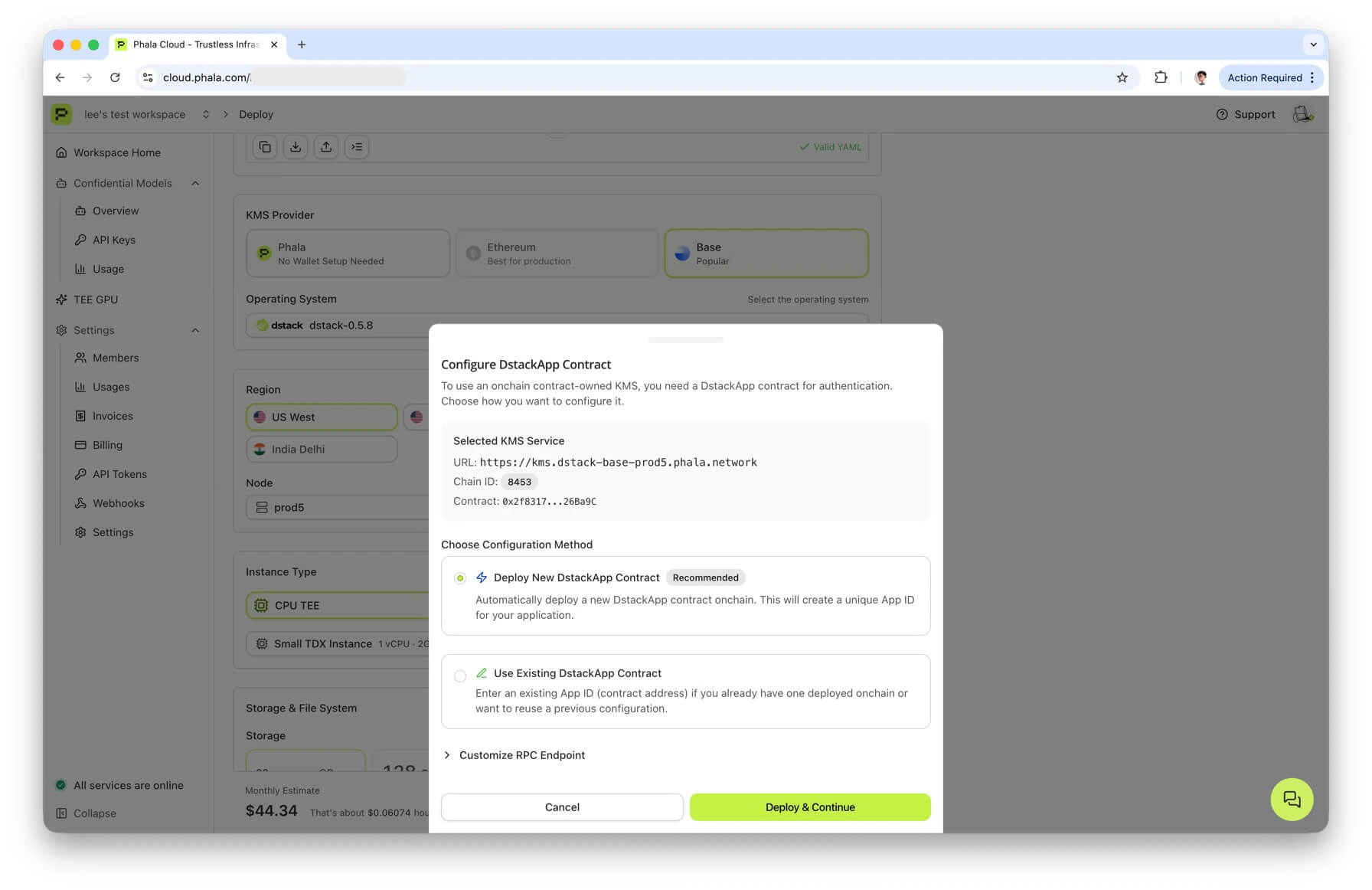
Step 5: Configure the DstackApp contract
The wizard opens a drawer titled Configure DstackApp Contract with two options:- Deploy New DstackApp Contract (recommended). This is the common case. The drawer shows you the selected KMS URL, the chain ID, and the KmsAuth contract address (truncated). Expand Customize RPC Endpoint if you want to use your own RPC provider; the dashboard ships with defaults you can test with the Test RPC button.
- Use Existing DstackApp Contract. If you already have a DstackApp you want to reuse (for example, replicating an app to a new CVM), paste its address here and the wizard will skip the deployment transaction.
KmsAuth.deployAndRegisterApp(deployer, disableUpgrades, allowAnyDevice, deviceId, composeHash). In a single transaction it both deploys the DstackApp contract and registers the initial compose hash and device ID — so after it confirms, both allowlists are already populated for the CVM that is about to start.
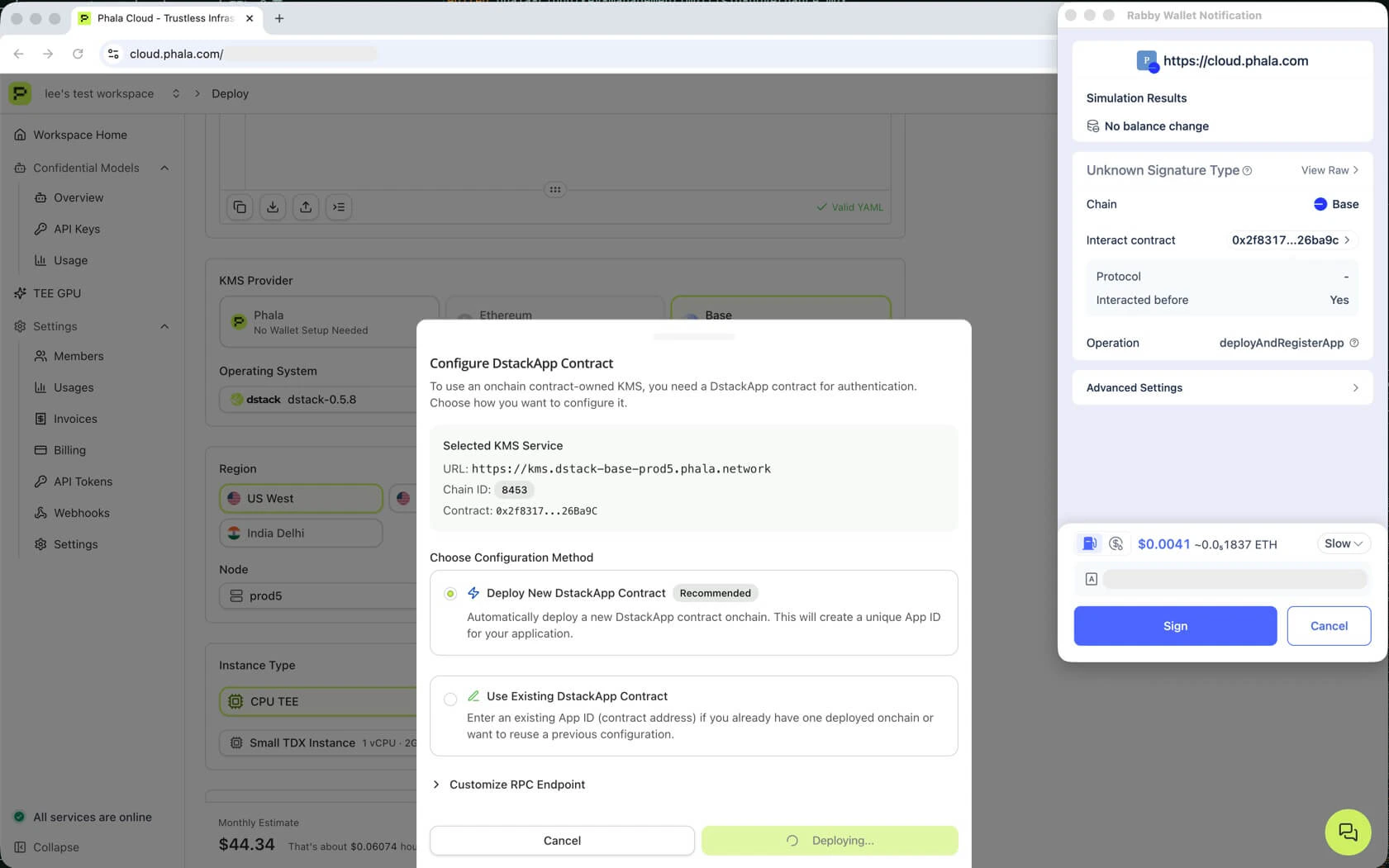
AppDeployedViaFactory event and extracts the new appId (which equals the DstackApp contract address).
Step 6: Backend commits the CVM
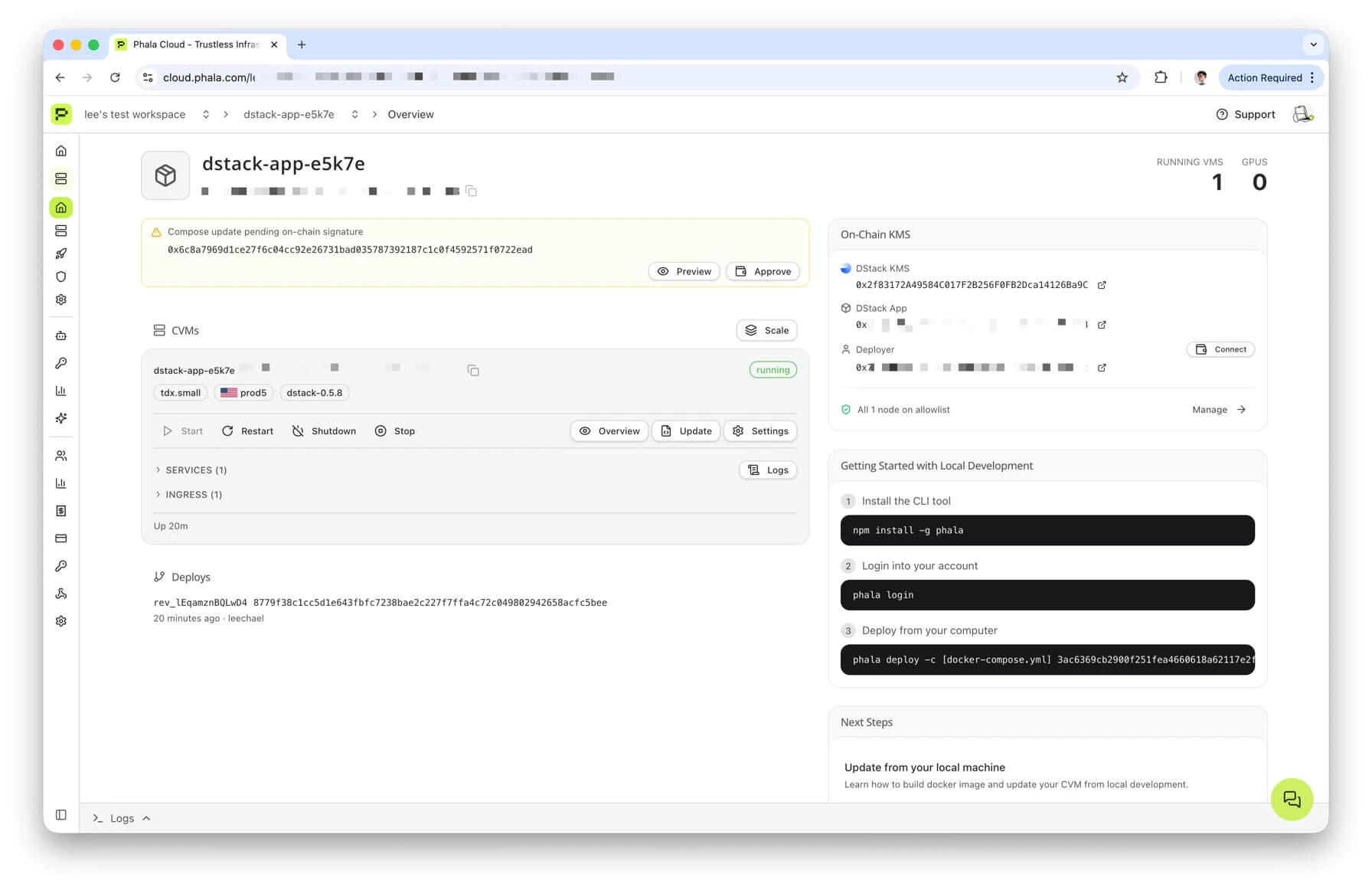
With the DstackApp address in hand, the dashboard calls the commit endpoint. The backend verifies the contract state on-chain, encrypts the env vars with the CVM’s env-encryption key, and writes the CVM record. When this returns, you are redirected to the app overview page at/<your-workspace>/apps/<app_id>.
The first CVM boot then kicks off the attestation flow described in Understanding Onchain KMS → Boot-Time Verification Flow. You can watch progress on the app overview page — under the On-Chain KMS sidebar you will see the DStack KMS address, the DStack App address, and the deployer address. All three link out to Basescan or Etherscan.
What to do if the wallet pop-up never appears
A few common misconfigurations stop the pop-up before you see it:- No wallet extension installed. The dashboard uses the standard
window.ethereuminjection. Install MetaMask, Rabby, or a similar extension first. - Wallet is unlocked on a different chain. Open the extension and switch to Base (chain ID 8453) or Ethereum mainnet (chain ID 1). The drawer’s Test RPC button will tell you whether the selected RPC is reachable and on the expected chain.
- Missing
device_idorcompose_hash. This means the provisioning step did not return onchain-KMS metadata — usually because the selected node does not support Onchain KMS. Go back and pick a different node, or pick a different KMS provider card.
Using an existing DstackApp instead of deploying a new one
If you already own a DstackApp from a previous deployment and you want to reuse it — for example, to run a second replica of the same application under the same identity — pick Use Existing DstackApp Contract in the drawer and paste the DstackApp address. The wizard will skip thedeployAndRegisterApp transaction. You still need to make sure the new CVM’s compose hash and device ID are allowlisted on that contract, either before starting or by running a follow-up addComposeHash / addDevice transaction.
Deploying via the CLI
The CLI handles everything in a single command. This is the fastest way to deploy for developers who already have a wallet configured in their shell.--kms accepts phala (default), ethereum, eth, or base. The --private-key flag falls back to the PRIVATE_KEY environment variable if you omit it. --rpc-url is optional — when omitted, the CLI uses viem’s default public RPC for the selected chain. Pass --rpc-url (or set ETH_RPC_URL) if you want to use a paid provider for stability.
If the deployment succeeds, the CLI prints a summary to stdout:
--json to get a machine-readable version instead:
The
app_id in these outputs is the DstackApp contract address. The CLI’s human-readable view prepends app_ for historical compatibility, and the JSON view strips the 0x prefix — both forms refer to the same 20-byte Ethereum address. On Basescan, you will see it as 0xff22c67f5d3b4c8a9e1f0a2b3c4d5e6f7a8b9c0d1.The
dashboard_url field in the CLI output currently points to /dashboard/cvms/<uuid>, which is a redirect target. The canonical workspace-scoped URLs are:- App overview —
https://cloud.phala.com/<workspace>/apps/<app_id> - CVM instance detail —
https://cloud.phala.com/<workspace>/apps/<app_id>/instances/<vm_uuid>
dashboard) and require the app_id or CVM uuid in the path. After landing through the redirect you will see one of these in the browser address bar.What happens under the hood
The CLI command maps to the following steps, in order:- Read the compose file and encrypt env vars locally. Size is capped at a few hundred kilobytes combined.
- Provision the CVM via the Phala Cloud backend. The backend picks a node, computes the
compose_hashanddevice_id, and returns them together with the KMS metadata (chain_id,kms_contract_address, RPC URL,chainobject for viem). At this point nothing is on-chain yet. - Deploy the DstackApp contract. The CLI calls
KmsAuth.deployAndRegisterApp(deployer, disableUpgrades=false, allowAnyDevice=false, deviceId, composeHash)from your--private-key. This is the single wallet-facing transaction. The resultingappIdis read from theAppDeployedViaFactoryevent. - Fetch the CVM’s env-encryption public key. The backend has one per app, derived inside the KMS. The CLI uses it to encrypt your env vars for the commit call.
- Commit the CVM provision. The CLI sends the
app_id,compose_hash,contract_address, and encrypted env to the backend, which then starts the CVM. The backend verifies on-chain that the DstackApp exists, the compose hash is registered, and the deployer address matches before flipping the CVM into the running state.
Using the CLI with Ethereum instead of Base
Same command,--kms ethereum instead of --kms base:
deployAndRegisterApp transaction is a contract deployment, so it is noticeably more expensive than a normal transfer.
--kms eth is accepted as an alias for --kms ethereum if you prefer it.
Common CLI flag reference
The flags you will reach for most often on top of the basic--kms base -c docker-compose.yml --private-key:
A production-shaped deploy using several of these:
Verifying Your Deployment
Once the CLI or dashboard has finished, three independent checks will confirm that the DstackApp contract is set up correctly.1. Read the contract from a block explorer
Open the DstackApp contract on the appropriate explorer. The address is theapp_id returned by the CLI (prepend 0x to get the Basescan/Etherscan form), or the “DStack App” row in the dashboard’s On-Chain KMS sidebar.
On Basescan or Etherscan, click Contract -> Read Contract and check:
owner()— should return your wallet address. After transferring ownership to a Safe, this is where you confirm the new owner address.allowedComposeHashes(0x<your compose hash>)— should returntrue. Copy the compose hash from the CLI output or the app overview page.allowedDeviceIds(0x<your device id>)— should returntruefor the device your CVM was scheduled on. Alternatively,allowAnyDevice()may returntrueif you explicitly chose that mode (not recommended for production).
AppDeployedViaFactory(appId, deployer) on the KmsAuth contract.
2. Check the CVM status in the dashboard
Navigate to the app overview page athttps://cloud.phala.com/<your-workspace>/apps/<app_id>. It has an On-Chain KMS sidebar that shows:
- The DStack KMS (KmsAuth) contract address with a link to the explorer
- The DStack App (DstackApp) contract address with a link to the explorer
- The deployer address — and a Connect button that, after connecting your wallet, tells you whether your connected address is the contract owner
https://cloud.phala.com/<your-workspace>/apps/<app_id>/instances/<vm_uuid>.
3. Check the CVM status from the CLI
Status: running, the KMS has already released the application keys, which means all three contract checks in step 1 passed at boot time.
Note that phala cvms get does not currently print KMS metadata (chain, DstackApp address, compose hash). For those, use the dashboard sidebar from step 2.
If the CVM is stuck in a pre-running state, check the logs:
What a healthy deployment looks like
To summarize: after a successful first deploy, all of the following should be true.phala cvms get <cvm-name-or-id>reportsStatus: running.- On the explorer,
DstackApp.owner()returns your wallet address. - On the explorer,
DstackApp.allowedComposeHashes(0x<hash>)returnstruefor the hash the CLI or dashboard reported. - On the explorer,
DstackApp.allowedDeviceIds(0x<deviceId>)returnstruefor the device the scheduler picked, orDstackApp.allowAnyDevice()returnstrue. - In the dashboard, the On-Chain KMS sidebar on the app overview page shows the three addresses and, after you connect your wallet, identifies you as the deployer.
What’s Next
Your CVM is running. From here:- To change the compose file. See Updating with Onchain KMS for the single-command EOA path, or Multisig and Governance if you plan to transfer ownership to a Safe or timelock.
- To allowlist more nodes for HA or migration. See Device Management.
- To transfer DstackApp ownership to a Safe, timelock, or DAO. Read Multisig and Governance before you transfer — an irreversible mistake leaves the CVM frozen on its current compose.
Troubleshooting
The CLI aborts with 'Not enough ETH'
The CLI aborts with 'Not enough ETH'
The CLI enforces a minimum wallet balance of 0.001 ETH before it will send
deployAndRegisterApp. Top up the wallet on the chain you are targeting and retry. On Base, the Base bridge or any mainstream exchange withdrawal works. On Ethereum mainnet, account for the L1 gas cost of a contract deployment — empty wallets will not do.The CLI says 'Chain required for publicClient' or 'Chain required for walletClient'
The CLI says 'Chain required for publicClient' or 'Chain required for walletClient'
This usually means
--rpc-url was not set and ETH_RPC_URL is not in your environment either. Set one of them and retry. You can verify with echo $ETH_RPC_URL.The DstackApp deploys but the CVM never reaches 'running'
The DstackApp deploys but the CVM never reaches 'running'
Check the CVM logs first, from the dashboard or with
phala logs. If the KMS rejected the attestation, the logs will say so. The most common root causes are:- The compose hash computed on the node does not match what the contract stores. This normally only happens if something mutates the compose file after provisioning — unusual, but worth re-running the deploy if you see it.
- The device ID of the node the scheduler picked is not in
allowedDeviceIds. On a fresh deploy this should not happen becausedeployAndRegisterAppregisters the current device ID in the same transaction. If it does, cross-check the DstackApp on the explorer:allowedDeviceIds(<deviceId>)should betrue. - The DstackApp
owneris not who you think it is. If the contract was created by someone else’s wallet,owner()on the explorer will reveal it.
I picked the wrong chain and want to move the app to the other chain
I picked the wrong chain and want to move the app to the other chain
Onchain KMS is not portable across chains — the DstackApp lives on one chain, and the KMS on that chain is the one that holds the keys. You cannot migrate a deployed CVM from Ethereum to Base (or vice versa) while keeping the same keys. The practical workflow is:
- Deploy a fresh CVM on the new chain with
phala deploy --kms baseor--kms ethereum. - Point traffic and any persistent storage at the new CVM.
- Delete the old CVM.
The dashboard wallet pop-up is asking for the wrong chain
The dashboard wallet pop-up is asking for the wrong chain
Your browser wallet is still on a different network. Open the wallet extension and switch to Base (chain ID 8453) or Ethereum Mainnet (chain ID 1), then click Deploy and Continue again. The dashboard will reject the transaction if the chain ID from your wallet does not match the KMS you selected.
Next Steps
- Updating with Onchain KMS — roll a new compose file when you hold the DstackApp owner key as an EOA.
- Multisig and Governance — the prepare-and-commit flow for compose updates when the DstackApp owner is a Safe, timelock, DAO, or any custom contract. Also covers webhook notifications for pending approvals.
- Device Management — how
device_idis derived, how to allow new nodes, and how to recover when a node’s device ID drifts after a hardware change. - Understanding Onchain KMS — the conceptual model if you want to revisit the contracts and boot-time flow.
- Error Codes reference — the full catalog of
ERR-01-*codes returned by the CVM API.