

VM logs show the CVM boot process and host-side QEMU output. Use them to diagnose startup failures, image download problems, and system initialization errors.

View VM logs

The log viewer opens from the Logs button in the upper-right corner of the CVM detail-page header.

CVM detail-page header with the Logs button highlighted in the upper-right corner

Logs in the CVM detail-page header

  1. Open your app in the Phala Cloud dashboard, then open the CVM instance.
  2. Click Logs in the CVM detail-page header.
  3. Under VM Logs, select a log source:
    • Kernel serial output shows the CVM boot and system console output.
    • qemu output shows standard output from the QEMU process.
    • qemu stderr shows errors written by the QEMU process.
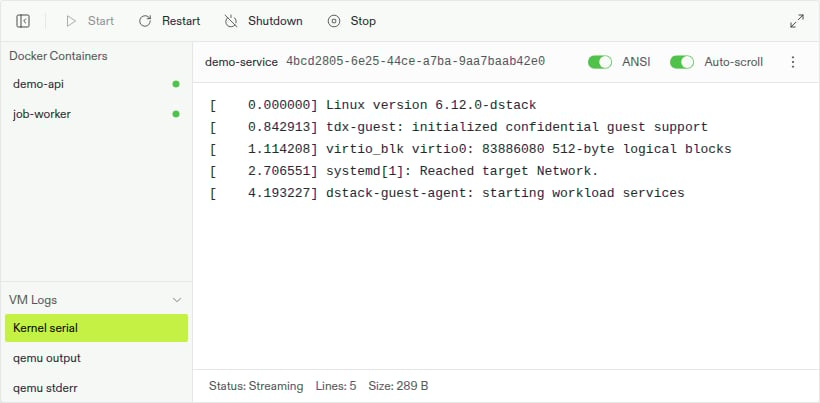
The log drawer switches to the selected source. Use Auto-scroll to follow new output or open the toolbar menu and click Retry Connection if the stream disconnects.
CVM log drawer with VM Logs expanded, Kernel serial selected, and boot output streaming

Kernel serial output in the CVM log drawer

View application logs

VM logs describe the CVM and its boot process. To inspect output written by your application, select a container under Docker Containers instead. See View and share Docker container logs for the complete procedure and visibility controls.