> ## Documentation Index
> Fetch the complete documentation index at: https://docs.phala.com/llms.txt
> Use this file to discover all available pages before exploring further.
> Create and manage Confidential Virtual Machines (CVMs) on Phala Cloud.
# Scaling
## Prerequisites
* A running CVM on Phala Cloud
* Understanding of your application's resource requirements
## Dynamic Resource Allocation
Phala Cloud provides flexible compute resource management, allowing you to scale your application's resources up or down based on your needs.
## How to Resize Your CVM
1. Navigate to your CVM dashboard
2. Locate the CVM you wish to modify
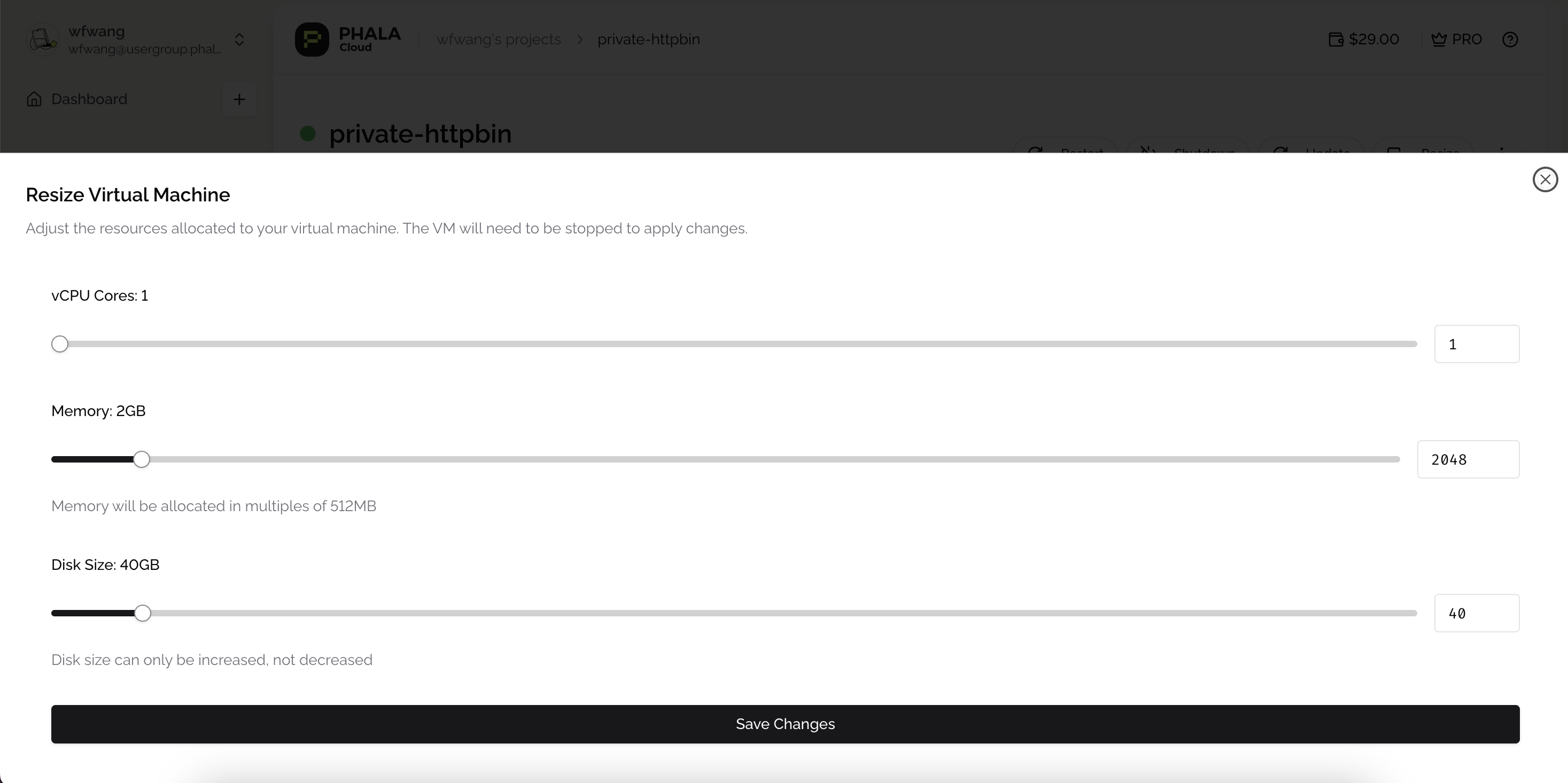
3. Click the **Resize** button on the CVM card
4. Adjust the CPU, memory, and storage allocations using the sliders
5. Review the new configuration and pricing
6. Confirm your changes
 ## Important Considerations
* **Restart Required**: The resize operation will trigger a restart of your CVM
* **Downtime**: Your application will experience brief downtime during the resize process
* **Data Persistence**: All data stored in persistent volumes will be preserved during resizing
* **Billing Changes**: Resource adjustments will be reflected in your billing from the moment the resize completes
## Recommended Approach
For production applications, consider:
* Scheduling resize operations during low-traffic periods
* Testing your application with the new resource configuration in a staging environment first
* Monitoring application performance after resizing to ensure optimal resource allocation
## Important Considerations
* **Restart Required**: The resize operation will trigger a restart of your CVM
* **Downtime**: Your application will experience brief downtime during the resize process
* **Data Persistence**: All data stored in persistent volumes will be preserved during resizing
* **Billing Changes**: Resource adjustments will be reflected in your billing from the moment the resize completes
## Recommended Approach
For production applications, consider:
* Scheduling resize operations during low-traffic periods
* Testing your application with the new resource configuration in a staging environment first
* Monitoring application performance after resizing to ensure optimal resource allocation