> ## Documentation Index
> Fetch the complete documentation index at: https://docs.phala.com/llms.txt
> Use this file to discover all available pages before exploring further.

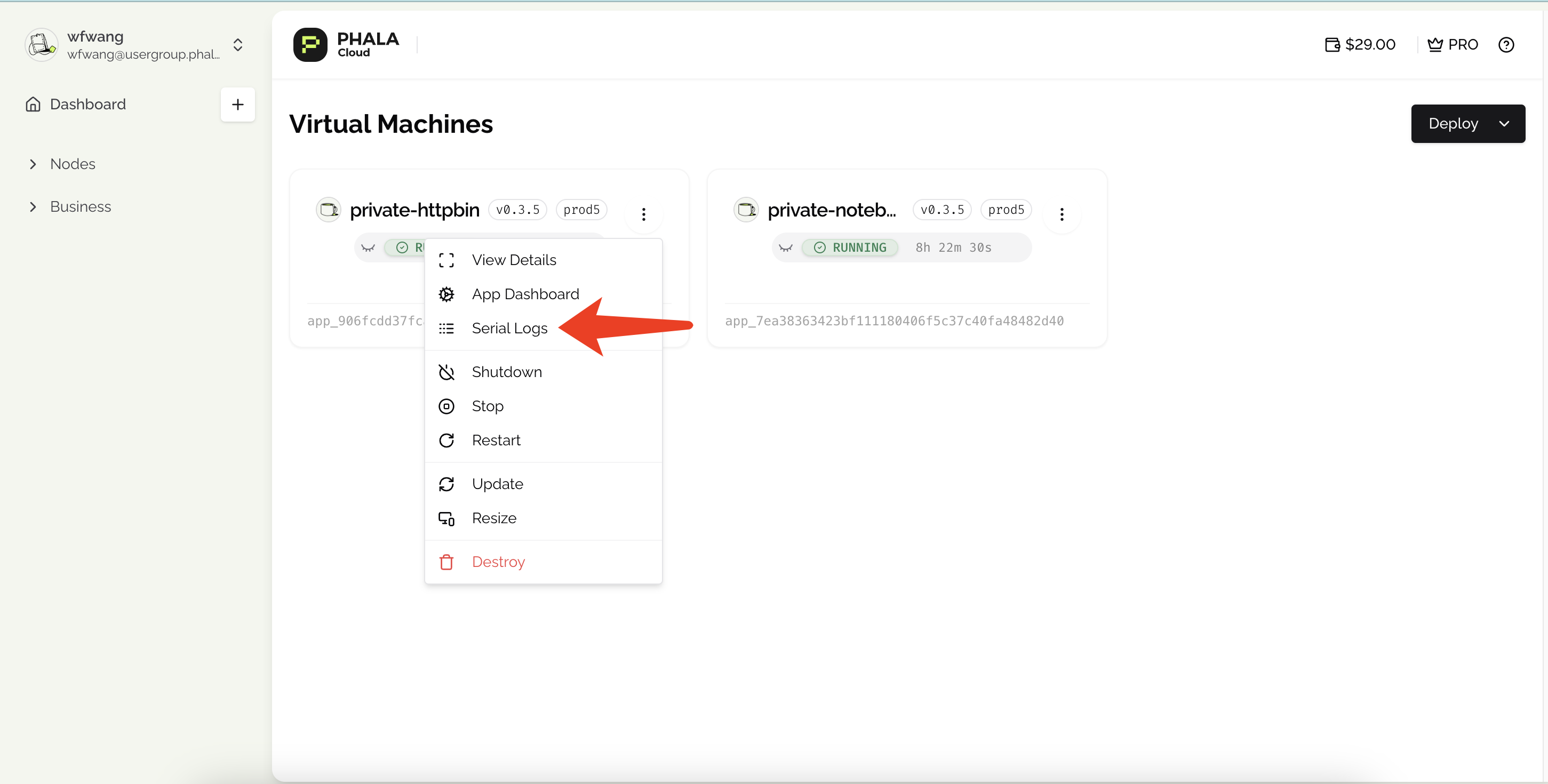
> View Docker container logs and control access to their public URLs.

# Public Logs

Use the CVM log drawer to inspect a container's runtime output. When **Public Logs** is enabled, you can also open the selected container's log stream in a separate browser tab and share its URL.

<Warning>
  Docker logs can contain application data, request details, or secrets written by your application. Only enable **Public Logs** when the output is safe to share with anyone who has the URL.
</Warning>

## View Docker container logs

The log viewer opens from the **Logs** button in the upper-right corner of the CVM detail-page header.

<Frame caption="Logs in the CVM detail-page header">
  <img src="https://mintcdn.com/phalanetwork-1606097b/BV6eYrfe2po64O93/images/cloud-log-entry.png?fit=max&auto=format&n=BV6eYrfe2po64O93&q=85&s=b4c90f7ac380c1bb5af8bee6ef7dbb64" alt="CVM detail-page header with the Logs button highlighted in the upper-right corner" width="820" height="105" data-path="images/cloud-log-entry.png" />
</Frame>

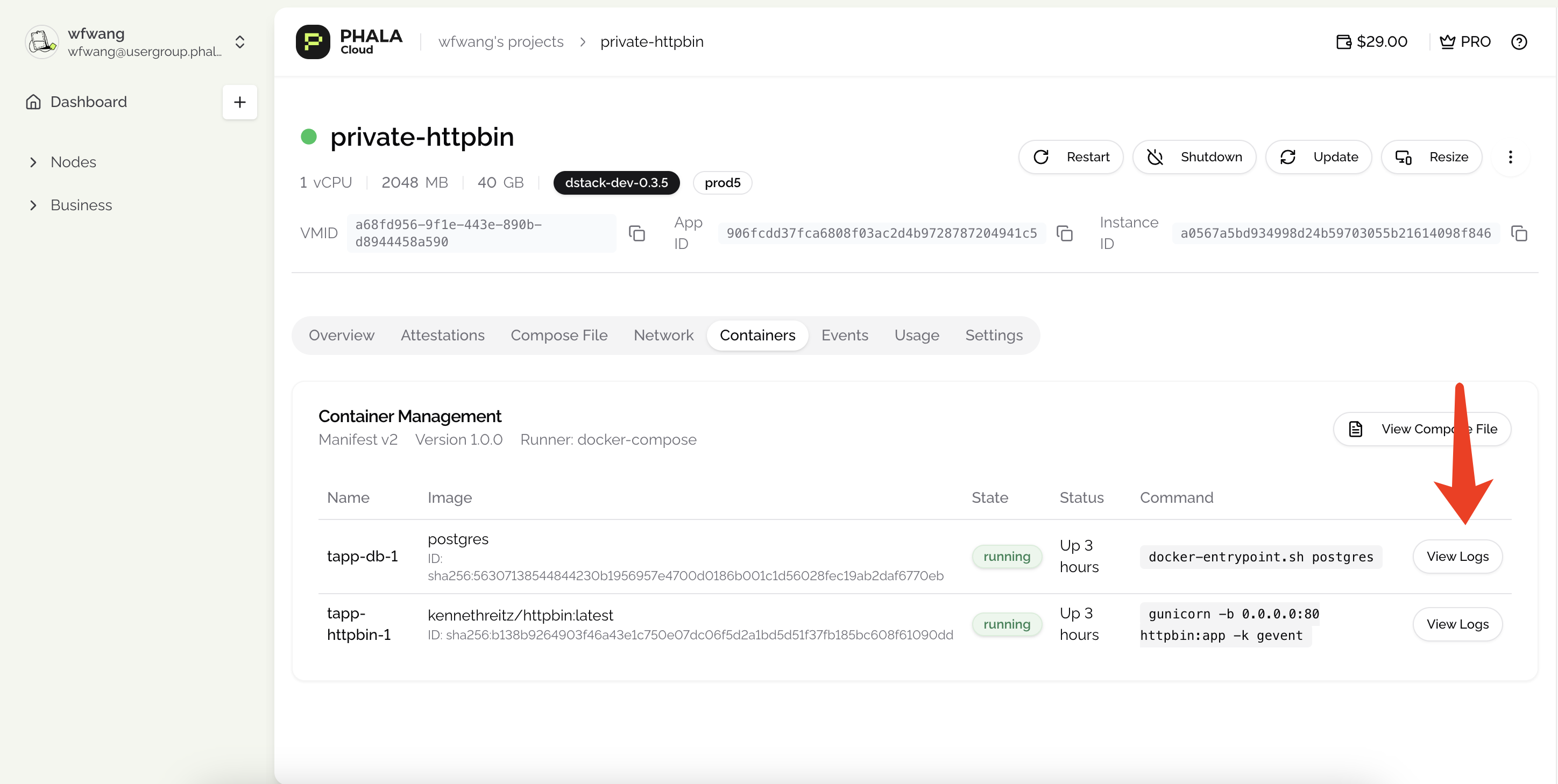
1. Open your app in the [Phala Cloud dashboard](https://cloud.phala.com), then open the CVM instance.
2. Click **Logs** in the CVM detail-page header.
3. Under **Docker Containers**, select the container whose logs you want to view.

The log drawer switches to the selected container's output. If a container does not have an available log endpoint, the container is disabled in the list.

<Frame caption="Docker Containers in the log source list">
  <img src="https://mintcdn.com/phalanetwork-1606097b/BV6eYrfe2po64O93/images/cloud-container-log.png?fit=max&auto=format&n=BV6eYrfe2po64O93&q=85&s=6a46f223ae65dd9cd2a10a2a53f9104f" alt="CVM log drawer with demo-api selected under Docker Containers and its application output streaming" width="820" height="403" data-path="images/cloud-container-log.png" />
</Frame>

## Open and copy a public log URL

1. Select a container under **Docker Containers**.
2. Open the log toolbar menu, then click **Open in New Window**.
3. Copy the URL from the new window's browser address bar.

**Open in New Window** is available only when the selected container has a public log endpoint. Anyone with the copied URL can open it without signing in to Phala Cloud.

## Control public access

The **Public Logs** setting controls Phala Cloud's managed Docker log endpoints.

| Setting  | Behavior                                                                                                                                       |
| -------- | ---------------------------------------------------------------------------------------------------------------------------------------------- |
| Enabled  | The dashboard provides a log URL for each available container. Anyone with a URL can view that container's logs without a Phala Cloud session. |
| Disabled | The dashboard does not provide Docker log URLs. Use an in-CVM log viewer or forward logs to a private external service instead.                |

To change the setting for an existing CVM:

1. Open the CVM detail page and click **Settings**.
2. Find **Worker Attestation Visibility Settings**.
3. Enable or disable **Public Logs**.
4. Click **Save Changes**, then confirm the change.

<Frame caption="Public Logs under Worker Attestation Visibility Settings">
  <img src="https://mintcdn.com/phalanetwork-1606097b/BV6eYrfe2po64O93/images/cloud-public-log-setting.png?fit=max&auto=format&n=BV6eYrfe2po64O93&q=85&s=7cce5337f16feb1cf883d79d521cae11" alt="Worker Attestation Visibility Settings with the Public Logs switch enabled" width="700" height="396" data-path="images/cloud-public-log-setting.png" />
</Frame>

<Warning>
  Changing a visibility setting restarts the CVM. Its applications are temporarily unavailable during the restart.
</Warning>

For authenticated access to private Docker logs, follow [Set up a private log viewer](/phala-cloud/monitoring/private-log-viewer).