> ## Documentation Index
> Fetch the complete documentation index at: https://docs.phala.com/llms.txt
> Use this file to discover all available pages before exploring further.
> Manage encrypted secrets and built-in environment variables for your CVM.
# Environment Variables
## Encrypted Secrets
When your application requires environment variables, **never set them directly in the Docker Compose file**. Instead, use the **Encrypted Secrets** section to ensure your sensitive data remains secure.
All encrypted secrets are **encrypted locally on the client side** (using X25519 + AES-256-GCM)
before being sent to the server. The Phala Cloud server never sees the plaintext values — only the
CVM's TEE can decrypt them at boot time.
Encrypted secrets are a list of key-value pairs that are passed into the docker compose file in the
same way as the variables defined in `.env` files. You should first define the encrypted secrets in
the dashboard (or CLI), and then reference them in the docker compose file using the `${KEY}`
syntax.
A typical use case is passing secrets to your containers via environment variables, using the
`environment:` Docker Compose directive.
Updating encrypted secrets is a **full replacement** operation. You cannot update a single variable
— every update requires submitting the complete set of all variables. This applies to both the
dashboard and the CLI.
1. **Declare Environment Variables in Docker Compose**
Define your environment variables in the Docker Compose file using variable substitution:
```yaml theme={"system"}
services:
your-service:
environment:
- OPENAI_API_KEY=${OPENAI_API_KEY}
- TWITTER_API_KEY=${TWITTER_API_KEY}
```
> **Important:** Do not use double quotation marks around variables:\
> ❌ `OPENAI_API_KEY="${OPENAI_API_KEY_IN_ENV}"`
2. **Set Values in Encrypted Secrets**
Configure the actual values in the **Encrypted Secrets** section of the dashboard.
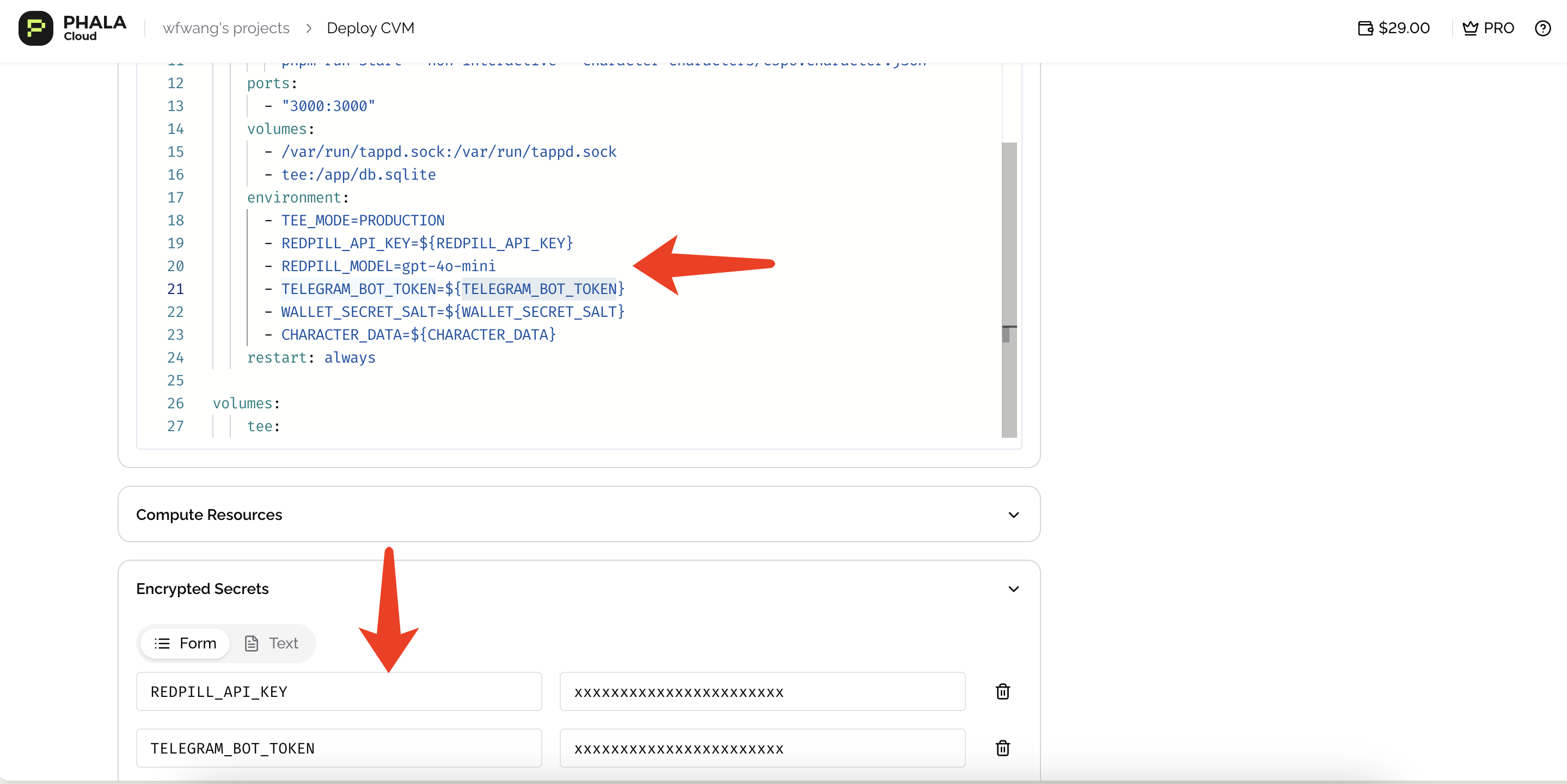 Secret names don't need to match your Docker Compose environment variable names. You can name
secrets anything in the UI, then reference them in Docker Compose using `${KEY}` syntax.
Besides the environment variables, you can also reference the encrypted secrets in any other place
like the `command:` docker compose directive. However, you should be careful to not leak the secret
values in the logs or other places.
Learn more about Docker .env files [here](https://docs.docker.com/compose/how-tos/environment-variables/set-environment-variables/).
We recommend using **Text** type for environment variables if you have many variables to set.
## Set Secrets via CLI
The CLI encrypts variables locally before sending them, just like the dashboard does.
```bash theme={"system"}
# Pass individual variables
phala deploy -e OPENAI_API_KEY=sk-xxx -e DATABASE_URL=postgres://...
# Or pass a .env file
phala deploy -e .env
```
To update secrets on an existing CVM, redeploy with the new values. Remember that this is a full replacement, so include all variables every time.
## Set Secrets via SDKs
Each SDK provides methods to update environment variables programmatically. The encryption happens client-side before the API call.
```typescript JavaScript theme={"system"}
import { createClient } from "@phala/cloud";
const client = createClient({ apiKey: process.env.PHALA_CLOUD_API_KEY });
await client.updateCvmEnvs({
id: "app_abc123",
envs: {
OPENAI_API_KEY: "sk-xxx",
DATABASE_URL: "postgres://user:pass@host:5432/db",
},
});
```
```python Python theme={"system"}
from phala_cloud import create_client
client = create_client()
client.update_cvm_envs({
"id": "app_abc123",
"envs": {
"OPENAI_API_KEY": "sk-xxx",
"DATABASE_URL": "postgres://user:pass@host:5432/db",
},
})
```
```go Go theme={"system"}
package main
import (
"context"
"log"
phala "github.com/Phala-Network/phala-cloud/sdks/go"
)
func main() {
client, _ := phala.NewClient()
err := client.UpdateCVMEnvs(context.Background(), "app_abc123", &phala.UpdateCVMEnvsRequest{
Envs: map[string]string{
"OPENAI_API_KEY": "sk-xxx",
"DATABASE_URL": "postgres://user:pass@host:5432/db",
},
})
if err != nil {
log.Fatal(err)
}
}
```
## Set Secrets via Terraform
The Terraform provider supports auto-encryption mode where you provide plaintext values and the provider handles encryption.
```hcl theme={"system"}
resource "phala_app" "web" {
name = "my-app"
size = "tdx.medium"
region = "US-WEST-1"
disk_size = 40
env = {
OPENAI_API_KEY = var.openai_api_key
DATABASE_URL = var.database_url
}
docker_compose = <<-YAML
services:
app:
image: myregistry/my-app:latest
ports:
- "80:80"
environment:
- OPENAI_API_KEY=${OPENAI_API_KEY}
- DATABASE_URL=${DATABASE_URL}
YAML
}
```
Even in auto-encryption mode, plaintext values are stored in your Terraform state file. Use a remote backend with encryption at rest, or switch to manual encrypted mode for maximum security.
## Best Practices
**Never put secrets in the compose file.** Always use encrypted secrets and reference them with `${KEY}` syntax. The compose file is stored on the server, but encrypted secrets are only decryptable inside the TEE.
**Use a `.env` file locally for development.** Keep a `.env.example` in your repo with placeholder values and add `.env` to `.gitignore`. This makes it easy for teammates to set up their own credentials.
**Rotate secrets by redeploying.** When you update encrypted secrets, the CVM restarts to pick up the new values. Plan for brief downtime, or run [multiple replicas](/phala-cloud/cvm/replicating-cvms) and rotate them one at a time to maintain availability.
**Keep secret names consistent.** Use the same key names in your compose file and encrypted secrets to avoid confusion. While Phala Cloud allows different names, matching them makes your configuration easier to audit.
## Built-in Environment Variables
Phala Cloud attaches a [default pre-launch script](https://github.com/Dstack-TEE/dstack-examples/tree/main/phala-cloud-prelaunch-script)
to every CVM deployment. This script runs before your Docker Compose services start, handling
private registry authentication, root access setup, and injecting environment variables you can
reference in your `docker-compose.yml`.
The built-in variables documented below are provided by the **default pre-launch script**. If you
replace it with a custom script via [`--pre-launch-script`](/phala-cloud/phala-cloud-cli/deploy#deploy-with-pre-launch-script), these variables will no
longer be available unless your script implements them.
The pre-launch script is versioned (currently **v0.0.14**). New deployments always use the latest
version, but existing CVMs keep the version they were deployed with — there is no automatic update.
To use a newer version, you need to redeploy your CVM.
### Private Docker Registry Authentication
Set the following encrypted secrets to pull images from a private Docker registry (Docker Hub, GHCR, etc.):
| Variable | Required | Description |
| ------------------------ | -------- | ---------------------------------------------------------------------- |
| `DSTACK_DOCKER_USERNAME` | Yes | Registry username |
| `DSTACK_DOCKER_PASSWORD` | Yes | Registry password or access token |
| `DSTACK_DOCKER_REGISTRY` | No | Registry URL. Defaults to `docker.io`. Set to `ghcr.io` for GHCR, etc. |
The pre-launch script logs in to the registry before pulling your images. If login fails, the CVM
boot is aborted.
### AWS ECR Authentication
Set the following encrypted secrets to pull images from Amazon ECR:
| Variable | Required | Description |
| ------------------------------ | -------- | ---------------------------------------------------------------------------------------------------------------------- |
| `DSTACK_AWS_ACCESS_KEY_ID` | Yes | AWS access key ID |
| `DSTACK_AWS_SECRET_ACCESS_KEY` | Yes | AWS secret access key |
| `DSTACK_AWS_REGION` | Yes | AWS region of your ECR repository |
| `DSTACK_AWS_ECR_REGISTRY` | Yes | Your ECR registry URL |
| `DSTACK_AWS_SESSION_TOKEN` | No | For temporary AWS credentials (e.g. assumed roles). If expired, the CVM continues to boot but may fail to pull images. |
The AWS CLI is installed inside the CVM when ECR credentials are detected — you do not need to
include it in your Docker image.
### Root Access
| Variable | Required | Description |
| ------------------------ | -------- | --------------------------------------------------------------------------------------------------------------- |
| `DSTACK_ROOT_PASSWORD` | No | Linux root password for dstack OS. If not set, a random 32-character password is generated. |
| `DSTACK_ROOT_PUBLIC_KEY` | No | SSH public key added to `/home/root/.ssh/authorized_keys` |
| `DSTACK_AUTHORIZED_KEYS` | No | SSH authorized keys for `/home/root/.ssh/authorized_keys`. Overwrites `DSTACK_ROOT_PUBLIC_KEY` if both are set. |
For security, `DSTACK_ROOT_PASSWORD`, `DSTACK_ROOT_PUBLIC_KEY`, and `DSTACK_AUTHORIZED_KEYS` are
**unset** from the environment immediately after they are applied. They will **not** be visible to
your Docker Compose services.
### App Metadata
The following variables are automatically injected by the pre-launch script. You do not need to set
them — they are available in your `docker-compose.yml`.
| Variable | Description |
| ----------------------- | ------------------------------------------------------------------------------------------ |
| `DSTACK_APP_ID` | Unique identifier for the CVM app |
| `DSTACK_GATEWAY_DOMAIN` | Gateway domain for accessing the app |
| `DSTACK_APP_DOMAIN` | Default app domain. Equals `${DSTACK_APP_ID}.${DSTACK_GATEWAY_DOMAIN}`, routes to port 80. |
You can reference these in your Docker Compose file:
```yaml theme={"system"}
services:
my-app:
environment:
- APP_ID=${DSTACK_APP_ID}
- PUBLIC_URL=https://${DSTACK_APP_DOMAIN}
```
`DSTACK_APP_DOMAIN` points to port 80 by default. To access a different port, use the pattern
`${DSTACK_APP_ID}-.${DSTACK_GATEWAY_DOMAIN}`. For example, to access port 3000:
`${DSTACK_APP_ID}-3000.${DSTACK_GATEWAY_DOMAIN}`.
Secret names don't need to match your Docker Compose environment variable names. You can name
secrets anything in the UI, then reference them in Docker Compose using `${KEY}` syntax.
Besides the environment variables, you can also reference the encrypted secrets in any other place
like the `command:` docker compose directive. However, you should be careful to not leak the secret
values in the logs or other places.
Learn more about Docker .env files [here](https://docs.docker.com/compose/how-tos/environment-variables/set-environment-variables/).
We recommend using **Text** type for environment variables if you have many variables to set.
## Set Secrets via CLI
The CLI encrypts variables locally before sending them, just like the dashboard does.
```bash theme={"system"}
# Pass individual variables
phala deploy -e OPENAI_API_KEY=sk-xxx -e DATABASE_URL=postgres://...
# Or pass a .env file
phala deploy -e .env
```
To update secrets on an existing CVM, redeploy with the new values. Remember that this is a full replacement, so include all variables every time.
## Set Secrets via SDKs
Each SDK provides methods to update environment variables programmatically. The encryption happens client-side before the API call.
```typescript JavaScript theme={"system"}
import { createClient } from "@phala/cloud";
const client = createClient({ apiKey: process.env.PHALA_CLOUD_API_KEY });
await client.updateCvmEnvs({
id: "app_abc123",
envs: {
OPENAI_API_KEY: "sk-xxx",
DATABASE_URL: "postgres://user:pass@host:5432/db",
},
});
```
```python Python theme={"system"}
from phala_cloud import create_client
client = create_client()
client.update_cvm_envs({
"id": "app_abc123",
"envs": {
"OPENAI_API_KEY": "sk-xxx",
"DATABASE_URL": "postgres://user:pass@host:5432/db",
},
})
```
```go Go theme={"system"}
package main
import (
"context"
"log"
phala "github.com/Phala-Network/phala-cloud/sdks/go"
)
func main() {
client, _ := phala.NewClient()
err := client.UpdateCVMEnvs(context.Background(), "app_abc123", &phala.UpdateCVMEnvsRequest{
Envs: map[string]string{
"OPENAI_API_KEY": "sk-xxx",
"DATABASE_URL": "postgres://user:pass@host:5432/db",
},
})
if err != nil {
log.Fatal(err)
}
}
```
## Set Secrets via Terraform
The Terraform provider supports auto-encryption mode where you provide plaintext values and the provider handles encryption.
```hcl theme={"system"}
resource "phala_app" "web" {
name = "my-app"
size = "tdx.medium"
region = "US-WEST-1"
disk_size = 40
env = {
OPENAI_API_KEY = var.openai_api_key
DATABASE_URL = var.database_url
}
docker_compose = <<-YAML
services:
app:
image: myregistry/my-app:latest
ports:
- "80:80"
environment:
- OPENAI_API_KEY=${OPENAI_API_KEY}
- DATABASE_URL=${DATABASE_URL}
YAML
}
```
Even in auto-encryption mode, plaintext values are stored in your Terraform state file. Use a remote backend with encryption at rest, or switch to manual encrypted mode for maximum security.
## Best Practices
**Never put secrets in the compose file.** Always use encrypted secrets and reference them with `${KEY}` syntax. The compose file is stored on the server, but encrypted secrets are only decryptable inside the TEE.
**Use a `.env` file locally for development.** Keep a `.env.example` in your repo with placeholder values and add `.env` to `.gitignore`. This makes it easy for teammates to set up their own credentials.
**Rotate secrets by redeploying.** When you update encrypted secrets, the CVM restarts to pick up the new values. Plan for brief downtime, or run [multiple replicas](/phala-cloud/cvm/replicating-cvms) and rotate them one at a time to maintain availability.
**Keep secret names consistent.** Use the same key names in your compose file and encrypted secrets to avoid confusion. While Phala Cloud allows different names, matching them makes your configuration easier to audit.
## Built-in Environment Variables
Phala Cloud attaches a [default pre-launch script](https://github.com/Dstack-TEE/dstack-examples/tree/main/phala-cloud-prelaunch-script)
to every CVM deployment. This script runs before your Docker Compose services start, handling
private registry authentication, root access setup, and injecting environment variables you can
reference in your `docker-compose.yml`.
The built-in variables documented below are provided by the **default pre-launch script**. If you
replace it with a custom script via [`--pre-launch-script`](/phala-cloud/phala-cloud-cli/deploy#deploy-with-pre-launch-script), these variables will no
longer be available unless your script implements them.
The pre-launch script is versioned (currently **v0.0.14**). New deployments always use the latest
version, but existing CVMs keep the version they were deployed with — there is no automatic update.
To use a newer version, you need to redeploy your CVM.
### Private Docker Registry Authentication
Set the following encrypted secrets to pull images from a private Docker registry (Docker Hub, GHCR, etc.):
| Variable | Required | Description |
| ------------------------ | -------- | ---------------------------------------------------------------------- |
| `DSTACK_DOCKER_USERNAME` | Yes | Registry username |
| `DSTACK_DOCKER_PASSWORD` | Yes | Registry password or access token |
| `DSTACK_DOCKER_REGISTRY` | No | Registry URL. Defaults to `docker.io`. Set to `ghcr.io` for GHCR, etc. |
The pre-launch script logs in to the registry before pulling your images. If login fails, the CVM
boot is aborted.
### AWS ECR Authentication
Set the following encrypted secrets to pull images from Amazon ECR:
| Variable | Required | Description |
| ------------------------------ | -------- | ---------------------------------------------------------------------------------------------------------------------- |
| `DSTACK_AWS_ACCESS_KEY_ID` | Yes | AWS access key ID |
| `DSTACK_AWS_SECRET_ACCESS_KEY` | Yes | AWS secret access key |
| `DSTACK_AWS_REGION` | Yes | AWS region of your ECR repository |
| `DSTACK_AWS_ECR_REGISTRY` | Yes | Your ECR registry URL |
| `DSTACK_AWS_SESSION_TOKEN` | No | For temporary AWS credentials (e.g. assumed roles). If expired, the CVM continues to boot but may fail to pull images. |
The AWS CLI is installed inside the CVM when ECR credentials are detected — you do not need to
include it in your Docker image.
### Root Access
| Variable | Required | Description |
| ------------------------ | -------- | --------------------------------------------------------------------------------------------------------------- |
| `DSTACK_ROOT_PASSWORD` | No | Linux root password for dstack OS. If not set, a random 32-character password is generated. |
| `DSTACK_ROOT_PUBLIC_KEY` | No | SSH public key added to `/home/root/.ssh/authorized_keys` |
| `DSTACK_AUTHORIZED_KEYS` | No | SSH authorized keys for `/home/root/.ssh/authorized_keys`. Overwrites `DSTACK_ROOT_PUBLIC_KEY` if both are set. |
For security, `DSTACK_ROOT_PASSWORD`, `DSTACK_ROOT_PUBLIC_KEY`, and `DSTACK_AUTHORIZED_KEYS` are
**unset** from the environment immediately after they are applied. They will **not** be visible to
your Docker Compose services.
### App Metadata
The following variables are automatically injected by the pre-launch script. You do not need to set
them — they are available in your `docker-compose.yml`.
| Variable | Description |
| ----------------------- | ------------------------------------------------------------------------------------------ |
| `DSTACK_APP_ID` | Unique identifier for the CVM app |
| `DSTACK_GATEWAY_DOMAIN` | Gateway domain for accessing the app |
| `DSTACK_APP_DOMAIN` | Default app domain. Equals `${DSTACK_APP_ID}.${DSTACK_GATEWAY_DOMAIN}`, routes to port 80. |
You can reference these in your Docker Compose file:
```yaml theme={"system"}
services:
my-app:
environment:
- APP_ID=${DSTACK_APP_ID}
- PUBLIC_URL=https://${DSTACK_APP_DOMAIN}
```
`DSTACK_APP_DOMAIN` points to port 80 by default. To access a different port, use the pattern
`${DSTACK_APP_ID}-.${DSTACK_GATEWAY_DOMAIN}`. For example, to access port 3000:
`${DSTACK_APP_ID}-3000.${DSTACK_GATEWAY_DOMAIN}`.