> ## Documentation Index
> Fetch the complete documentation index at: https://docs.phala.com/llms.txt
> Use this file to discover all available pages before exploring further.
> How to become a Featured Builder on Trust Center and showcase your verified application
# Become a Featured Builder
## What is Featured Builder?
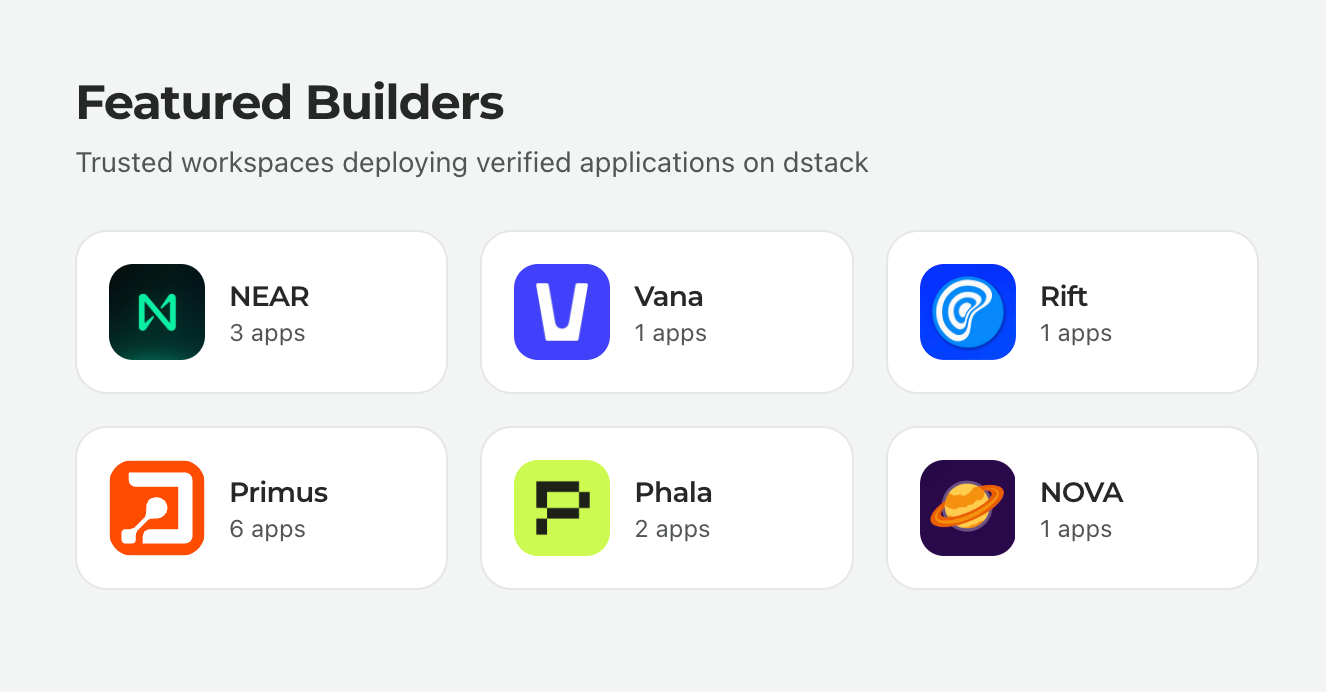
Featured Builders are highlighted applications on [trust.phala.com](https://trust.phala.com) that demonstrate excellent use cases of Phala's trusted execution environment. Being featured gives your application increased visibility and credibility within the Phala ecosystem.
 ## Requirements
Before applying to become a Featured Builder, ensure your application:
* Is deployed on Phala Cloud with passing Trust Center verification
* Has a complete workspace profile with proper branding
* Has enabled public listing for the application
## Step 1: Set Up Your Workspace Profile
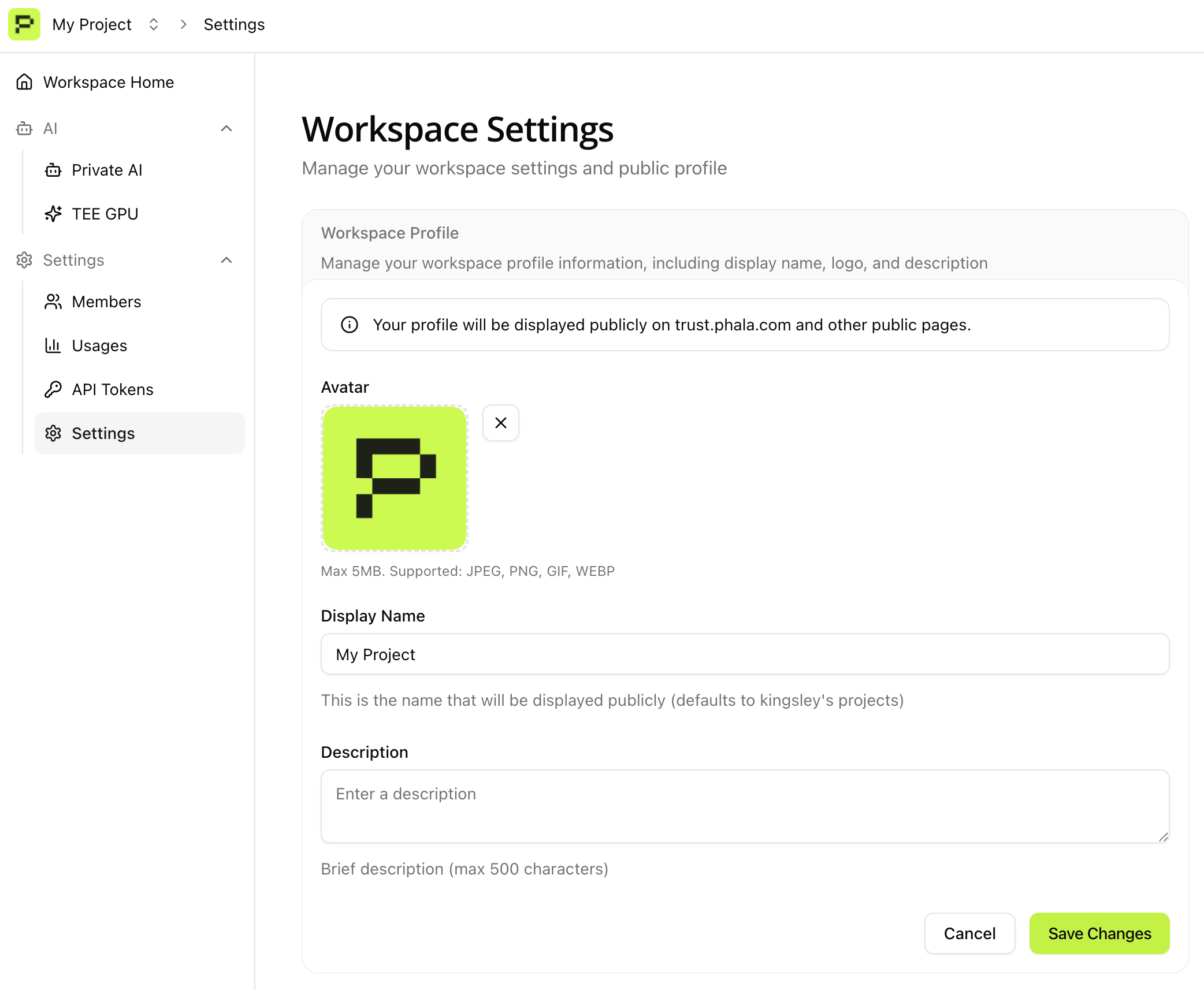
A complete workspace profile helps users understand who built the application and establishes trust.
Navigate to your workspace settings in the Phala Cloud dashboard and fill in your profile information:
* **Workspace Name**: Your organization or project name
* **Description**: A brief description of what you do
* **Logo**: Upload a clear, recognizable logo
## Requirements
Before applying to become a Featured Builder, ensure your application:
* Is deployed on Phala Cloud with passing Trust Center verification
* Has a complete workspace profile with proper branding
* Has enabled public listing for the application
## Step 1: Set Up Your Workspace Profile
A complete workspace profile helps users understand who built the application and establishes trust.
Navigate to your workspace settings in the Phala Cloud dashboard and fill in your profile information:
* **Workspace Name**: Your organization or project name
* **Description**: A brief description of what you do
* **Logo**: Upload a clear, recognizable logo
 ## Step 2: Enable Public Listing
Public listing makes your application discoverable on the Trust Center platform. This is required for Featured Builder consideration.
In your application settings, locate and enable the **Public Listing** toggle:
## Step 2: Enable Public Listing
Public listing makes your application discoverable on the Trust Center platform. This is required for Featured Builder consideration.
In your application settings, locate and enable the **Public Listing** toggle:
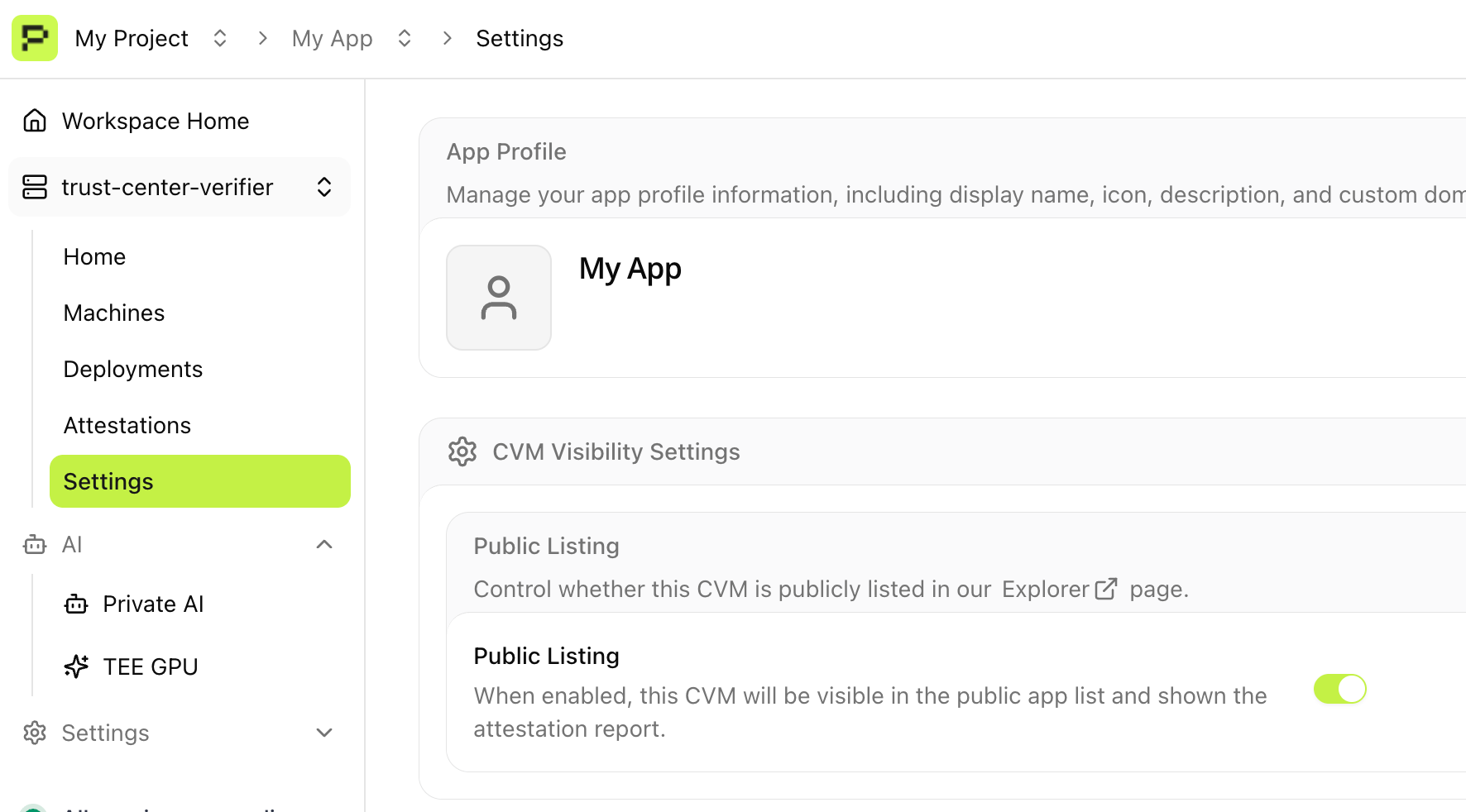 Enabling public listing makes your application's Trust Center verification report publicly accessible. This is designed for transparency and allows users to verify your deployment.
## Step 3: Apply for Featured Builder
Once your workspace profile is complete and public listing is enabled, contact the Phala team to apply for Featured Builder status.
Send an email to **[cloud@phala.network](mailto:cloud@phala.network)** with:
* Your application name and App ID
* A brief description of your application's use case
* Why your application would be a good showcase for Phala Cloud
The team will review your application and respond within a few business days.
## Benefits of Being Featured
* **Increased Visibility**: Your application appears on the Trust Center homepage
* **Credibility**: Featured status signals quality and trust to potential users
* **Community Recognition**: Join the showcase of leading builders on Phala
## Next Steps
* **View Trust Center**: [trust.phala.com](https://trust.phala.com)
* **Understand Verification**: [Trust Center Verification](/phala-cloud/attestation/trust-center-verification)
* **Deploy Your App**: [Getting Started with Phala Cloud](/phala-cloud/getting-started/overview)
Enabling public listing makes your application's Trust Center verification report publicly accessible. This is designed for transparency and allows users to verify your deployment.
## Step 3: Apply for Featured Builder
Once your workspace profile is complete and public listing is enabled, contact the Phala team to apply for Featured Builder status.
Send an email to **[cloud@phala.network](mailto:cloud@phala.network)** with:
* Your application name and App ID
* A brief description of your application's use case
* Why your application would be a good showcase for Phala Cloud
The team will review your application and respond within a few business days.
## Benefits of Being Featured
* **Increased Visibility**: Your application appears on the Trust Center homepage
* **Credibility**: Featured status signals quality and trust to potential users
* **Community Recognition**: Join the showcase of leading builders on Phala
## Next Steps
* **View Trust Center**: [trust.phala.com](https://trust.phala.com)
* **Understand Verification**: [Trust Center Verification](/phala-cloud/attestation/trust-center-verification)
* **Deploy Your App**: [Getting Started with Phala Cloud](/phala-cloud/getting-started/overview)